How to build a MetaTrader 4 expert advisor without programming
Many traders have their own trading idea: "I buy when the fast moving average crosses above the slow one", "I sell when RSI is above 70". Checking an idea like that by hand takes a long time, and nobody can watch a chart around the clock. That's the job of an expert advisor. Botmentis is a free MT4 EA builder, no coding required: you assemble the expert advisor from blocks on a canvas without writing a single line of code.
In this guide you'll learn what an expert advisor is, why coding one yourself is hard, and how Botmentis gets you from idea to ready-to-use file.
What an expert advisor is and why traders use one
An expert advisor (EA, trading robot) is a program for the MetaTrader 4 terminal that watches the chart and opens and closes trades according to the rules you set. It doesn't get tired, doesn't get distracted and never breaks its rules because of emotions.
An expert advisor is useful when:
- your strategy has clear entry and exit conditions that can be put into words
- you want to trade several symbols, or trade during hours when you're away from the screen
- you want to test an idea on historical data in the Strategy Tester before risking money
Keep in mind that an expert advisor executes exactly the logic you put into it. It doesn't make a strategy better or worse — it makes it disciplined.
Why writing an MQL4 expert advisor yourself is hard and expensive
Expert advisors for MetaTrader 4 are written in the MQL4 language. To turn a simple rule such as "two moving averages cross" into a working expert advisor, you have to learn the syntax, the indicator functions, order handling, error handling and many small details of the terminal. That takes weeks.
The alternative is to hire a freelance developer, which has its own downsides:
- every job costs money, and a strategy is rarely right on the first try
- every change means another discussion, more waiting and another payment
- deadlines depend on how busy the developer is
- explaining your logic clearly enough that it can't be misread is harder than it sounds
As a result, even a simple idea takes days to check. With an EA builder you can create an expert advisor without programming and change the logic yourself — in minutes, not weeks.
How Botmentis works
Botmentis is a MetaTrader 4 EA generator that runs in your browser, so there's nothing to install. It's an MT4 EA builder without coding: you describe your strategy by connecting blocks into conditions on a canvas.
The expert advisor's logic is split across tabs:
| Tab | What you set there |
|---|---|
| Buy entry | when to open a buy trade |
| Sell entry | when to open a sell trade |
| Buy exit | when to close a buy trade |
| Sell exit | when to close a sell trade |
| EA settings | lot size, Stop Loss, Take Profit and other trading settings |
| Input parameters | what you'll be able to change in the terminal |
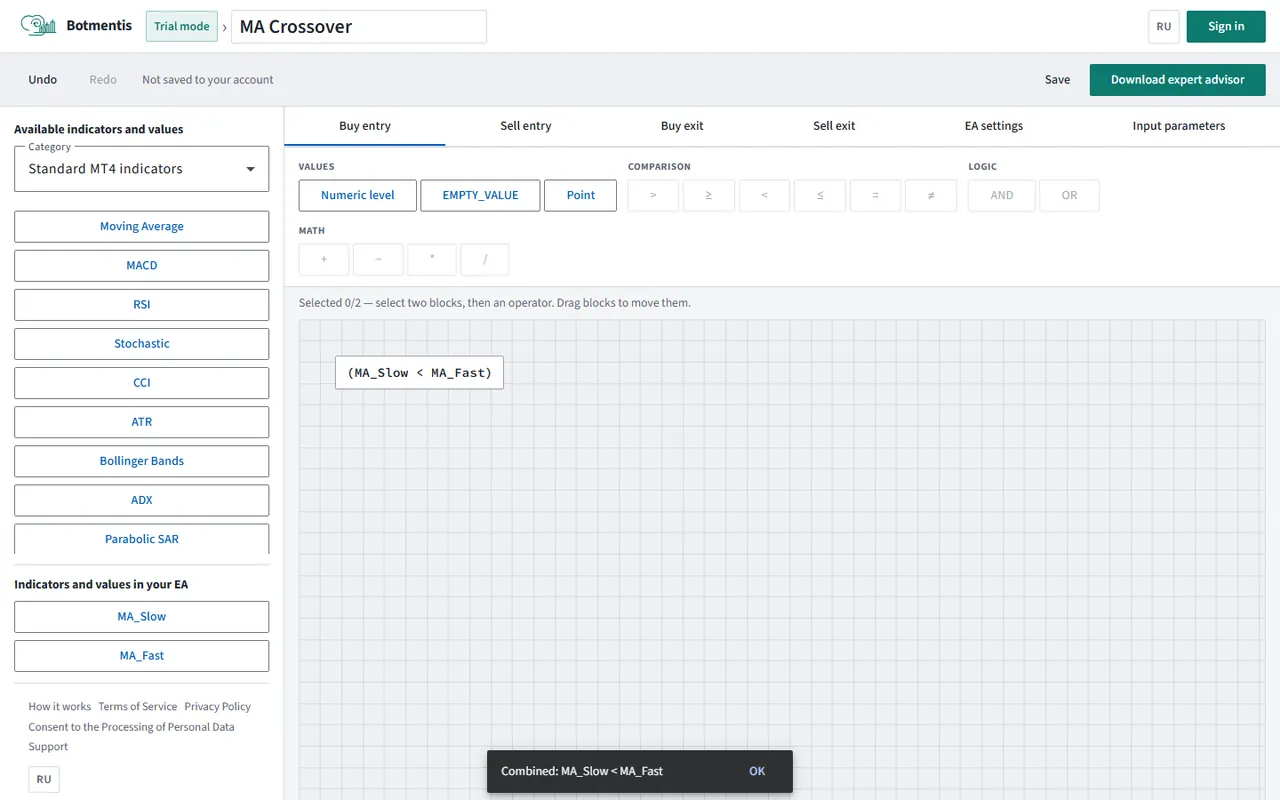
Conditions are built from these blocks:
- Indicators. The "Standard MT4 indicators" category has the familiar moving averages, RSI, MACD, Stochastic and more. The "My indicators" category holds your own.
- Numeric level — a fixed number, such as 30 or 70 for RSI
- EMPTY_VALUE and Point — built-in MetaTrader 4 values. EMPTY_VALUE is useful, for example, with arrow indicators that don't draw an arrow on every bar; Point is the smallest price step.
- Comparison: greater than (>), greater than or equal (≥), less than (<), less than or equal (≤), equal (=), not equal (≠)
- Logic — AND and OR, to combine several conditions into one
- Math: addition, subtraction, multiplication and division (+ − * /) — for example, to compare the price with a moving average plus a few points
A condition reads almost like a plain sentence: "the fast moving average is above the slow one AND RSI is below 70". No code, just blocks and the connections between them. In effect, it's an MQL4 EA generator with a clear visual interface: you describe the rules and get the expert advisor's ready-to-use source file.
Step by step: from an idea to an expert advisor file
Let's walk through a classic strategy: buying on a crossover of two moving averages, filtered by RSI.
Step 1. Add indicators
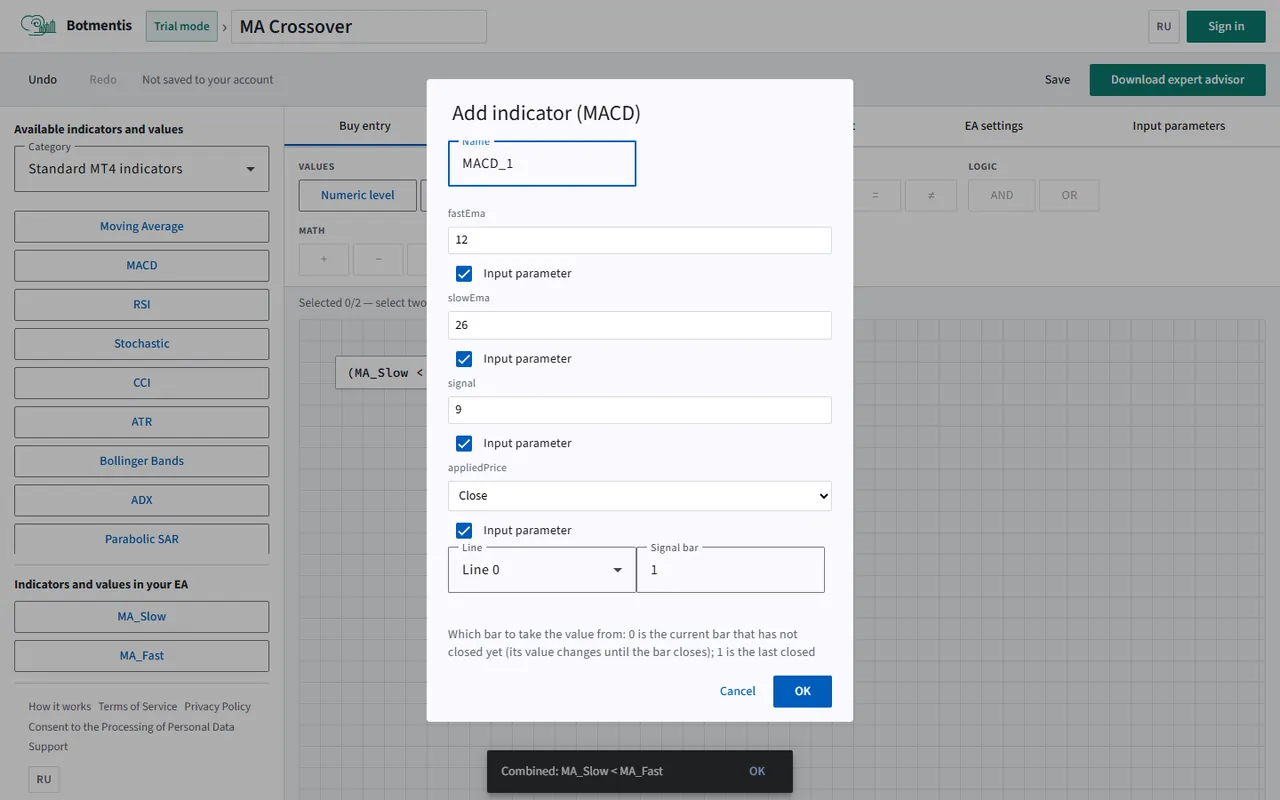
Open the "Buy entry" tab and add two moving averages from "Standard MT4 indicators": a fast one (for example, period 10) and a slow one (period 50). In the indicator window, set its parameters, pick a line (if the indicator has more than one) and choose the "Signal bar".
The signal bar is the bar the value is taken from: 0 is the current bar that hasn't closed yet (its value changes until the bar closes), 1 is the last closed bar (the usual choice), 2 means two bars back, and so on.
Step 2. Set the entry conditions
An upward crossover takes two comparisons joined with AND:
- on bar 1 the fast moving average is greater than the slow one
- on bar 2 the fast moving average is less than or equal to the slow one
Then add a filter, RSI on bar 1 below a numeric level of 70, so the expert advisor doesn't buy into an overbought market. For sells, build the mirror-image condition on the "Sell entry" tab.
Step 3. Set the exit conditions
On the "Buy exit" and "Sell exit" tabs, describe when to close a trade, for example when the averages cross back the other way or RSI rises above 70. Or skip exit conditions altogether and let Stop Loss and Take Profit do the job.
Step 4. Configure the expert advisor
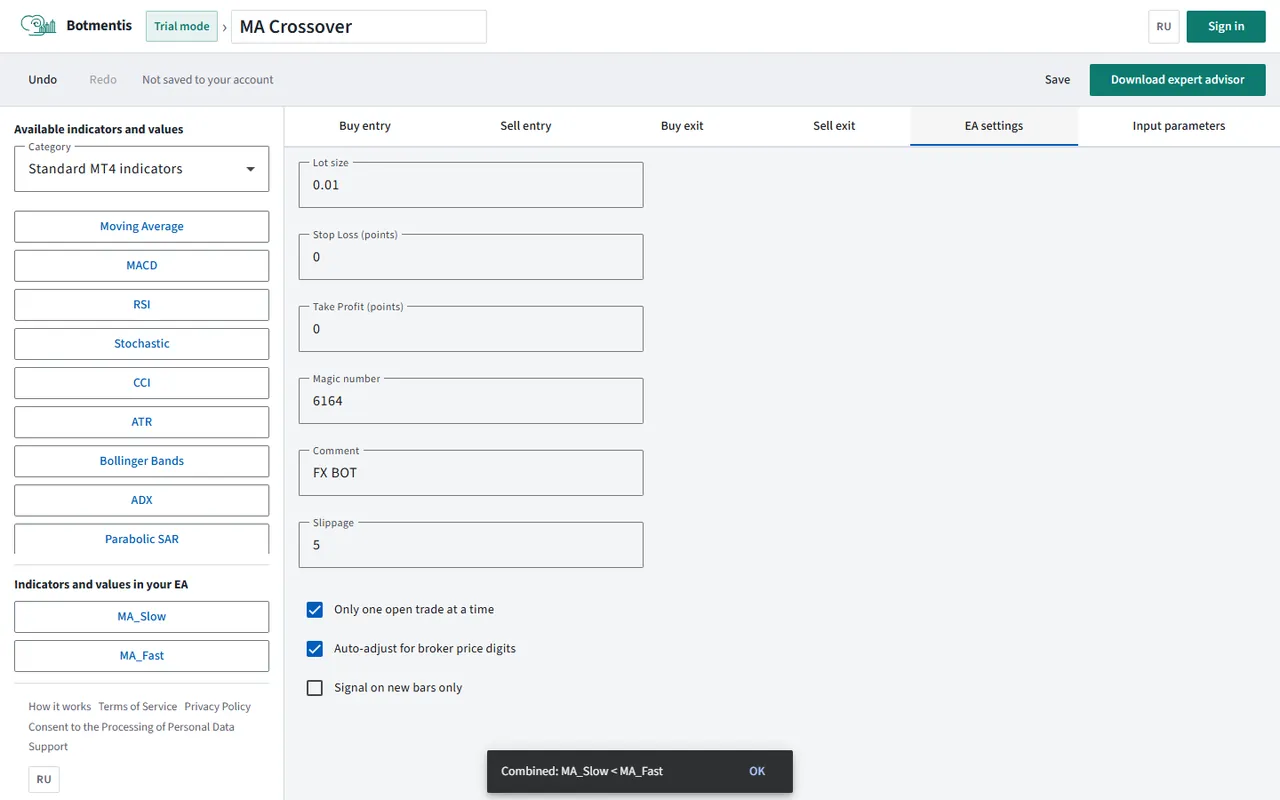
On the "EA settings" tab, set the lot size, Stop Loss and Take Profit in points, the Magic number (the number the expert advisor uses to tell its own trades apart), a trade comment and slippage. This tab also has a few handy options: "Only one open trade at a time", "Auto-adjust for broker price digits" and "Signal on new bars only".
Step 5. Download the expert advisor
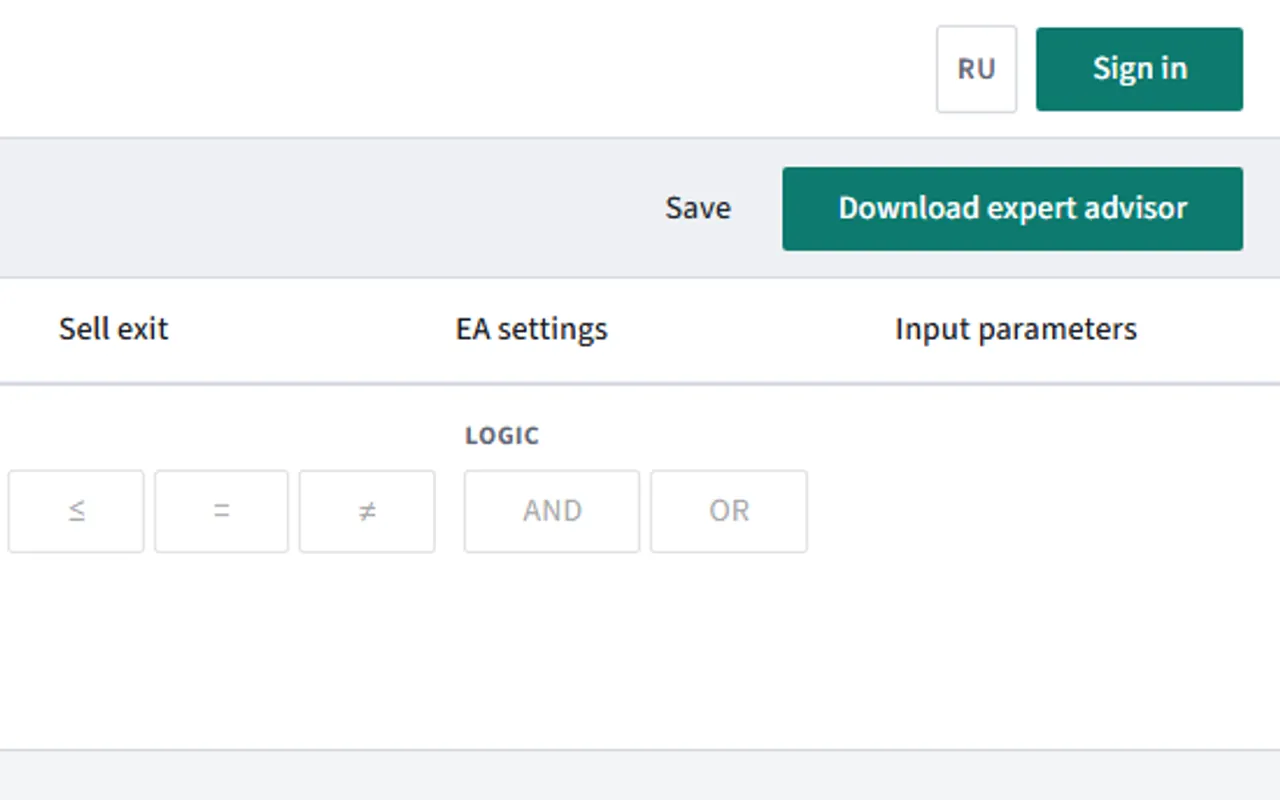
Click "Download expert advisor" to get an .mq4 file with your EA's MQL4 source code.
Step 6. Add the expert advisor to MetaTrader 4
In the terminal, open "File → Open Data Folder", go to the MQL4\Experts folder and put the downloaded file there. Open it in MetaEditor and click "Compile" (or simply restart the terminal). The expert advisor appears in the "Navigator" window — drag it onto a chart and enable AutoTrading.
If the expert advisor uses a custom indicator, that indicator must also be in the MQL4\Indicators folder of your terminal.
Custom indicators in an expert advisor
Many strategies rely not on standard moving averages but on an indicator you bought or found on a forum. Botmentis lets you use a custom indicator in an EA without hiring a programmer.
Click "Upload indicator (.ex4 / .mq4)" (available after you sign up) and choose the file. Both a compiled .ex4 and an .mq4 source file work. The indicator appears in the "My indicators" category, and its parameters show up in the window on their own — you don't have to type them in.
From there, you use it just like a standard indicator: choose the line (buffer) and the signal bar, and compare the value with levels or other indicators. This makes it easy to build an indicator-based expert advisor on arrow signals: for example, "buy when the up-arrow line is not equal to EMPTY_VALUE on bar 1".
Arrow indicators have an even simpler option — the "Indicator signal condition". Choose the line with the arrow and the signal bar, then "Has signal" or "No signal". A "has signal" condition fires when the indicator has drawn its arrow on the chosen bar, and "no signal" fires when there's no arrow there. You can use it for both entries and exits.
You can combine your own indicator with the standard ones: for example, enter on an arrow only when the price is above the slow moving average and RSI isn't in the overbought zone. All such combinations are built from the same comparison blocks and AND / OR logic.
Expert advisor input parameters
A good strategy almost always needs tuning: a moving average period of 10 or 14, an RSI level of 70 or 75, a Stop Loss of 30 or 50 points. Rebuilding the EA every time you change a number gets tedious.
That's what the "Input parameters" tab is for. Mark any indicator parameter as an "Input parameter" and it shows up on the Inputs tab in MetaTrader 4. Then you can change the moving average period or the level right in the expert advisor's Properties window in the terminal, without editing code or downloading the file again.
Input parameters are especially handy in the Strategy Tester: you can quickly run the same logic with different values and compare the results.
Testing the strategy in the MT4 Strategy Tester
Before you run an expert advisor on a live account, test it in the MetaTrader 4 Strategy Tester and on a demo account. A few general tips:
- test over a long enough period that covers different market conditions, both trending and ranging
- use good-quality quotes and a modeling mode that suits your strategy
- take the spread and commissions into account: a strategy with small targets is especially sensitive to them
- don't over-optimize for a single stretch of history: settings tuned perfectly to the past often perform poorly going forward
- after the tester, run the expert advisor on a demo account for at least a few weeks
Remember: a good result on historical data doesn't guarantee future profit. Botmentis builds an expert advisor from your logic, but it doesn't judge whether that logic is profitable.
Frequently asked questions
Do I need to know MQL4?
No. Conditions are built from blocks, and settings are entered in form fields. You don't need any MQL4 knowledge to build or run the EA. If you do code, you can open the source code in MetaEditor and fine-tune it.
Does it work with MT5?
No, Botmentis creates expert advisors for MetaTrader 4 only. MetaTrader 5 expert advisors are written in a different language and aren't compatible with MT4.
How much does it cost?
The builder is free.
Can I use it without signing up?
Yes. In trial mode you can build an expert advisor and download the file without signing up — just open trial mode.
Can I save my projects?
When you're signed in, your projects are saved, and you can come back later to change the logic and download a new version of the expert advisor. To sign in, just enter the code we email you, no password needed: sign in.
What exactly do I download?
An expert advisor file for MetaTrader 4 with MQL4 source code (.mq4). Put it in the MQL4\Experts folder of your terminal and compile it in MetaEditor.
Can I use my own indicator?
Yes. Upload an .ex4 or .mq4 file — the indicator appears in "My indicators", and you can use it in conditions just like the standard ones.
Does the expert advisor guarantee profit?
No. The expert advisor only executes the rules you set. Trading results depend on the strategy and the market, and trading in financial markets involves the risk of losing money.
Build your own expert advisor
Want to make an MT4 trading robot in a few minutes? Open the builder, put your conditions together from blocks and download the finished file. No sign-up needed.
Botmentis generates expert advisor code from the logic you set. It does not provide investment advice. See the Terms of Service for details.